Pages

Saturday, January 30, 2021

Blocking an individual title on Netflix

I wasn't aware this was possible but apparently, it is! If you have a specific programme you want to not be available on Netflix then you can block it by name (rather than by content rating).

Here's an example;

I've done a search for Free Rein (nothing against this programme, I was just looking for an example!). You can see the result here;


You can see there is both Free Rein the series and Free Rein Valentines TV movie.

I'm going to test blocking the TV movie (as it's easier to see).

The first thing is to go into your account (top right) and then scroll down until you see "Profile and Parental Controls"-section. Find the profile you are using and click on the right arrow to expand the details and then click "change" in the Viewing Restrictions section.

You then need to enter your Netflix password in order to make changes.

You'll then be presented with something that looks like this;

The top part allows you to set the "maturity" ratings.

Beneath that is a "Title Restrictions for Andy" section. Here you can type the name of a title that you want to block (the auto-complete matches what you type to an existing Netflix title) and then you click save.

When I return to the main screen and attempt to search for Free Rein I now see this;


I still have access to the series "Free Rein" but I no longer even see the TV movie.

There are disadvantages to working this way; you can't pre-emptively block a title that isn't currently on Netflix. For example, if you're in the UK and you do a search for "Harry Potter" - you'll not find anything as the movies aren't available in the UK on Netflix yet.


Monday, September 28, 2020

Postgres "Default" (column data) behaviour

 I've started working a lot with Postgres lately and one of the interesting things I've noticed is how the DEFAULT value is treated when doing an insert into a table.

For example, let's take the following test table;

DROP TABLE IF EXISTS ap_test;

CREATE TABLE ap_test(

    id SERIAL NOT NULL,

    stuff TEXT DEFAULT 'ok',

    CONSTRAINT ap_test_pk PRIMARY KEY (id)

);

So now let's look at the necessary inserts;

INSERT INTO ap_test(stuff) VALUES (null);

INSERT INTO ap_test(stuff) VALUES ('test');

INSERT INTO ap_test(stuff) VALUES (DEFAULT);

SELECT * FROM ap_test;

So basically we inserting three values into the table; NULL, 'test', and DEFAULT.

You get the following values in the table;


So "NULL" is not triggering the columns default value (as "NULL" is a value in itself). 

The problem comes when you're working with this table outside of SQL and using code. It's fairly typical to structure your code using a parametised string. For example;

insertSQL := 'INSERT INTO ap_test(stuff) VALUES (%)'

The problem is how do you handle the difference between NULL and DEFAULT. You need to include the logic in your code which ensures that if you mean NULL then it writes null, but if you mean "use the default" it writes DEFAULT.

I just found this interesting (coming from Oracle) and an environment where default values were handled very differently.

Thursday, May 17, 2018

Gmail: Blast from the Past!

I've subscribed to Office 365 and installed Outlook to access my Gmail account. Just for testing. I haven't gone insane.

One of the interesting default features of Outlook is that it downloads every single email you've ever received. Every one. By default. Given that GDPR is on the horizon (7 days and counting!) I thought you might be interested in this one before the bonfire of the emails begins.

Gmail was launched on 1st April 2004 (the entire History of which is available here via Wikipedia), I purchased a beta key off of eBay (I think!) and signed up in February 2005.

Here's the first ever email I received in my Gmail account; a Welcome from the Gmail Team:

Original Gmail "welcome" email

My particular favourite section;

"As you're using Gmail, you might also see some ads or related links. We believe that you shouldn't have to share your inbox with large, blinking, irrelevant ads. Gmail's small text ads are matched by computers, and designed to be relevant to the messages you're viewing. Which means for once, you might even find ads to be interesting and useful."

See? Outlook can be useful for some things ...

Friday, May 11, 2018

Office 365: Creating a Simple Flow (Workflow) in a SharePoint Online Document Library

I've not done a great deal of playing around with SharePoint Online in the past and so jumped at the chance during a recent rollout. One of the things I've always wanted to do is automatically group documents in a SharePoint document library based on the name of the file. To me this feature has always been one of the ones I've most wanted - the ability to name a word document (for example);

High-Level Design - Microsoft - Exchange - Andy Pellew - 20180510.doc

And have the SharePoint document library where I've saved it extract the Document Type, Vendor, Software, Author, and Date directly into the corresponding properties of the document in the SharePoint library (rather than getting the user to update it manually) would be fantastic. In SharePoint Online with the new "Flow" functionality, it looks like this was possible *without* having to resort to SharePoint designer (and the consequent "upgrade issues" use of that software always seems to raise).

So to test this, I set up a new document library called "Help and Support". I added a column called "Active" as a simple Yes/No column (default "Yes"), and then created an "Active Documents" view to only show documents with "Active" set to "yes", and left the "All Documents" view to show everything. I created a new flow (clicking on "Flow" and then "Create a flow").

Once I was happy it was working I  uploaded a few documents;
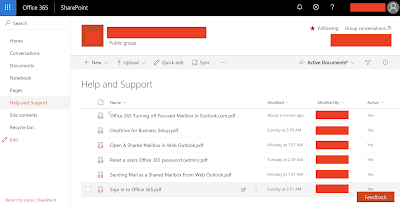
SharePoint Online document library
You'll notice that all the documents in the view are PDF's. While it would be great to jump straight in and create all the columns I listed above it would be a little complicated for this post, so I'm going to make it simple; if it's a PDF active is "yes", if it's not then active is "no". Clear?

Let's see how it works. Clicking on "Flow" and then "See your flows" takes you to a new page;
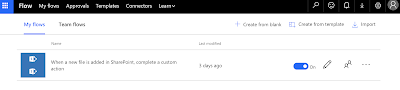
My Flows
Clicking on the name of the flow "When a new file is added in SharePoint, complete a custom action", this then takes you to the details page;
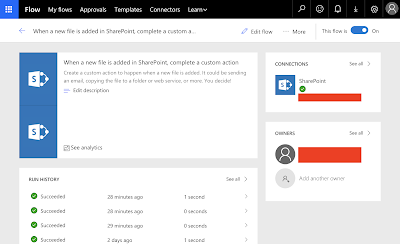
My Flows > Flow Details
As you can see I haven't changed the description from the default (terrible practice, if it were staying then I would update it!).

Clicking "Edit flow" at the top shows the flow;
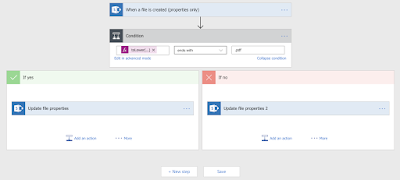
Flow details
As you can see this is an effortless flow. Basically, it's just a simple condition (does it end in pdf), followed by setting the property depending on the result (yes or no)*.

Starting at the top; the flow fires every time a file is created.

The condition was a relatively simple "end with .pdf" however I wanted to add a small amount of complexity here by converting the name of the file into lowercase so that PDF, Pdf, pdf, etc. are all treated the same. This made things a bit more complicated as there didn't seem to be a way to use the simple editor to do this and I was forced to click "Edit in advanced mode". The code I added was this;

@endswith(toLower(triggerBody()?['{FilenameWithExtension}']), '.pdf')

From the simple dialogue I started with this;

@endswith(triggerBody()?['{FilenameWithExtension}'], '.pdf')

The help showed that toLower was a function so when I dropped that in it worked the first time - I was actually very impressed!

Next was updating the file's properties based on the result. Here everything was very much "select from a list"; picking SharePoint, picking "Update file properties", then the SharePoint site, and document library.

The one little bump in what was looking like a very intuitive process (the Active field had already appeared once I picked the library name) was the mandatory field Id;
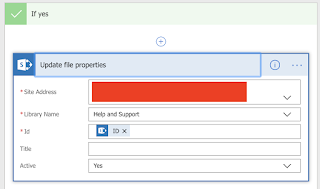
Update file properties dialogue
As you can see it's currently set to the ID of the SharePoint item. It became clear that it should be this on entering the field and help popped up with ID as the only option, but until I'd actually entered and the help had appeared I literally had no idea what this was going to require!

I repeated the process with "if no", setting Active to "no".

Testing was quick and relatively easy - I clicked the "Test" icon and then uploaded a file.

And that was it.

*- Yes, I know, you could just do this in a simple step by doing everything in one go (setting the property based on the filename), but that's not really in the spirit of either or this example or how to do workflows in general!

Thursday, May 10, 2018

Office 365: Turning off Focused Mailbox in Outlook.com (Shared Mailbox hidden emails issue)

Welcome back. It's been a while :-)

Anyway, we recently had an issue with an Office 365 implementation that was preventing users who were accessing a shared mailbox from seeing all the emails. The problem was traced back to the "Focused" inbox. For the uses Inbox there was a clear option to disable this;

Focused Inbox (outlook.com)
As you can see the "Focused" and "Other" links in the inbox enable a quick way to switch between the types of email you wish to view. Unfortunately when the user scrolls down and looks in a shared mailbox the top options are no longer available;

Shared mailbox (without Focused and Other options)
Rather than default to showing all the emails the shared mailbox is only showing the Focused emails but with no way to switch this off.

On the plus side it's relatively easy to switch off the Focused inbox - but unfortunately, it has to be switched off for all mailboxes at once.

Click the settings cog at the top-right, and then the "Display Settings" option;

Settings > Display settings
This gives you the Display options;

Display settings
First, click the "Focused inbox", and then at the bottom select "Don't sort messages".

Finally, click "OK".

And that's it, the "Focused" link will have vanished and you'll see all emails in your inbox.


Wednesday, February 1, 2017

Communication & The Joys of Written English

I’ve been attending a communication course that’s been looking at the building blocks for how we communicate with each other. One of the first things the course highlighted is how much we rely on non-verbal communication when we’re attempting to understand what someone else it trying to communicate and how difficult this in in the modern world when you’re not dealing with someone face-to-face. For me I found this particularly relevant due to the large number of emails I receive and send every day, and as email is my preferred means of communication (for work anyway!).

One of the examples they used was around this simple phrase;
“I didn’t say he stole the money”.
The meaning of this simple phrase changes entirely depending on the one word you choose to emphasise;
I didn’t say he stole the money - It was someone else who said it
I didn’t say he stole the money – It really was someone else, not me
I didn’t say he stole the money – Was it implied? Did I write it down?
I didn’t say he stole the money – I said someone did it, but not him
I didn’t say he stole the money – Maybe it was his money (he got it from the bank for example)?
I didn’t say he stole the money – not that money, the other money (context)
I didn’t say he stole the money – I said he stole something else
It’s easy to see when it’s put like this how confusing it must be for people who just have the exact words someone is using (without any emphasis) to decide on the message they are trying to get across. To make things slightly more confusing we then discussed how exactly the same message, with the same emphasis, delivered by two different people could be taken multiple ways when the listener takes into account things like the relationship between them and the person talking, the wider context of the discussion, etc.

We didn’t even get as far as to touch on what if someone is not communicating in their first language.

Something to think about the next time you read something in an email …

Wednesday, October 12, 2016

Searching vs Filtering

This is one of the questions that keeps coming up (usually in discussion featuring Microsoft SharePoint and equally usually starting with a complaint about not being able to find something they "know is there").

Mostly the issues come down to the differences between searching and filtering and I put together the little example below which helped explain things;
Bob lives in a house. He's got lot of books one of which is the Great Gatsby. His bookshelf is in his lounge and everything in his life is nicely indexed and searchable and all result sets include the location. 
Bob wants to find his book. 
He does a search "book=great gatsby AND location=lounge". He gets the result that the book he's looking for is in the bedroom (where he left it). 
Now if he'd used the same text as a filter then he'd have had no results as the book wasn't in the lounge and filters don't have the flexibility to, if no result matches exactly, to widen out to include "close enough"-matches that, in this case, give him the result he's looking for.
This worked quite well so I thought I'd share it.

As a side note this also demonstrates the effectiveness of a really good search engine. Take, for instance, the majority of users habit of "filing" their emails into folders. If everyone in an enterprise was reliably able to search for things just think of all the time that could be saved by everyone just archiving emails out of their inbox rather than filing them away.

Sunday, September 6, 2015

Minecraft Birthday Invite (slightly off topic!)

My daughter want's a Minecraft party for her 7th Birthday and I put together this birthday party invite. I used Pages (for the Mac) but I've included a few links below which should allow you to edit the document for your own use).

The primary school my daughter attends allows them to have a "birthday table" at lunchtime on their birthday. I'll be there as well as a number of her friends.

Here are some links (all via Google Docs);
  • PDF (should you need it)
  • Pages (the raw file)
  • Word (just in case you're running Windows)

This was pretty easy to put together (largely thanks to Google Image Search).

 I'll be doing something similar for her main birthday party.

Monday, August 31, 2015

Deploying Carrier-Specific APN Settings using MobileIron

The first step is go into the policies and settings page in MobileIron. You'll need to login as an administrator and then go to the "Policies and Configs" tab and then into "Configurations";


Choose "Add New", then "iOS and OS X" and finally "APN". This will bring up the APN properties dialog to allow you to enter the APN details from the carrier;


We've added two APN's; one for Three and the other for Orange (both in the UK).

We primarily use AD groups to control who gets what but during a migration from one carrier to another this has not worked well. In the UK the switchover can happen anytime and the last thing you want is users to suddenly find themselves unable to access the network.

In order to fix this we've added some additional criteria to the label in MobileIron to ensure that users will only pickup the APN settings if they are on the right network.

The existing label criteria was;
"user.ldap.groups.name" =  "MobileIron_UK_APN"
We would simply put the user in the AD group they would pickup the APN information from our active provider.

This was changed to;
"user.ldap.groups.name" =  "MobileIron_UK_APN"  AND
"common.home_operator_name" =  "Three" AND "common.home_country_name" =  "United Kingdom"
In this way when users swap their sims and are migrated from the label should trigger the removal of the old APN even if the user is in the AD group which should be deploying it.

Similarly we create a another group to work in the other direction - to only apply the new APN for Orange if the user is in the right group AND on the Orange network (in the UK).

This actually had the happy side effect that users who were on Vodafone, O2, or any of the other virtual operators didn't pick up the APN if they'd be left in the group accidentally (or had two devices, one company the other private).

In this way we ensure disruption to the users (not to mention calls to ServiceDesk!) are minimised.

Thursday, August 27, 2015

Outlook 2016 (for Mac) Email Formatting/ Image Display Issue

I've been working today on an interesting issue with email formatting when you send HTML emails between the Mac and PC versions of Outlook. The issue only seems to occur one way - from Outlook 2016 on a Mac to Outlook 2013 on a Windows machine. In addition to font issues it also seems to be doing something "weird" with a PNG image I've embedded as a test.

So here's the problem. On the left is the test signature in Outlook 2016 (Mac) and on the right is the signature as it appears when it arrives in Outlook 2013 (PC);


As you can see the image shows that when the email arrives in Outlook 2013 the colour of the image changes (although if you save the file and open it in preview it is actually still the same colour - it's the way it's rendered that's different, not the image itself).

Clicking "reply" (which lets you see the font information being used) shows that while the email signature was build using the font Calibri (which is installed on both devices) it's being rendered in Outlook using "Times New Roman".

From what I can see (i.e. "thank you google") it looks like Outlook 2016 isn't including font information in the email so Outlook 2013 is reverting to it's standard font. The problem seems to persist if rather than using Outlook 2013 on a PC you use the mail client on an iPhone - this suggests Outlook 2016 is doing some odd rather than 2013 just not displaying it correctly.

What's going on with the image is a mystery! Which slightly deepens if you copy/ paste your email signature into Mail on the Mac. You still get the image problem, but not the font problem. However if you save the image to disk from the Outlook signature, open in preview, and then copy/paste into the email signature in Mail from there you don't get the same issue. Again the light image is also visible on an iPhone which suggests it's the information in the email message being rendered that is causing the issue.


Neither issue occurs if you use Apple Mail on a Mac, it's something specifically done by the latest version of Outlook.

Should I work out how to address this I'll make another post, just thought this was odd enough to justify a specific post ...

Monday, March 9, 2015

PL/SQL: Dropping a connected user

Here's a quick script I wrote to disconnect and then drop a connected user.

Just replace with the user you want to remove.

BEGIN
  FOR sql_command IN (select 'alter system kill session ''' || sid || ',' || serial# || '''' AS command FROM v$session WHERE username = '') LOOP
    EXECUTE IMMEDIATE
      sql_command.command;
  END LOOP;
  
  EXECUTE IMMEDIATE
    'DROP USER  CASCADE';
  COMMIT;
END;

You could make a parameter fairly easily, but this patch of code met my immediate needs (there was an web front end that was continually trying to connect but I didn't want to shut it down, just drop and re-create the user).

Wednesday, February 11, 2015

Oracle PL/SQL: Give me record counts for all tables in a schema

This piece of SQL will output the row counts for every table in the current schema in a CSV format;

declare 
  i integer;
begin
  dbms_output.put_line('Table Name,Row Count,' || TO_CHAR(SYSDATE, 'DD-MON-YYYY HH24:MI:SS'));
  for v_table in (select ut.table_name from user_tables ut) loop
    execute immediate
      'select count(*) from ' || v_Table.Table_Name
      into i;
    dbms_output.put_line(v_Table.Table_Name || ',' || TO_CHAR(i));
  end loop;

end;

Very useful for doing before/ after migration comparisons.

Thursday, January 22, 2015

WIN8: User Interface Consistency

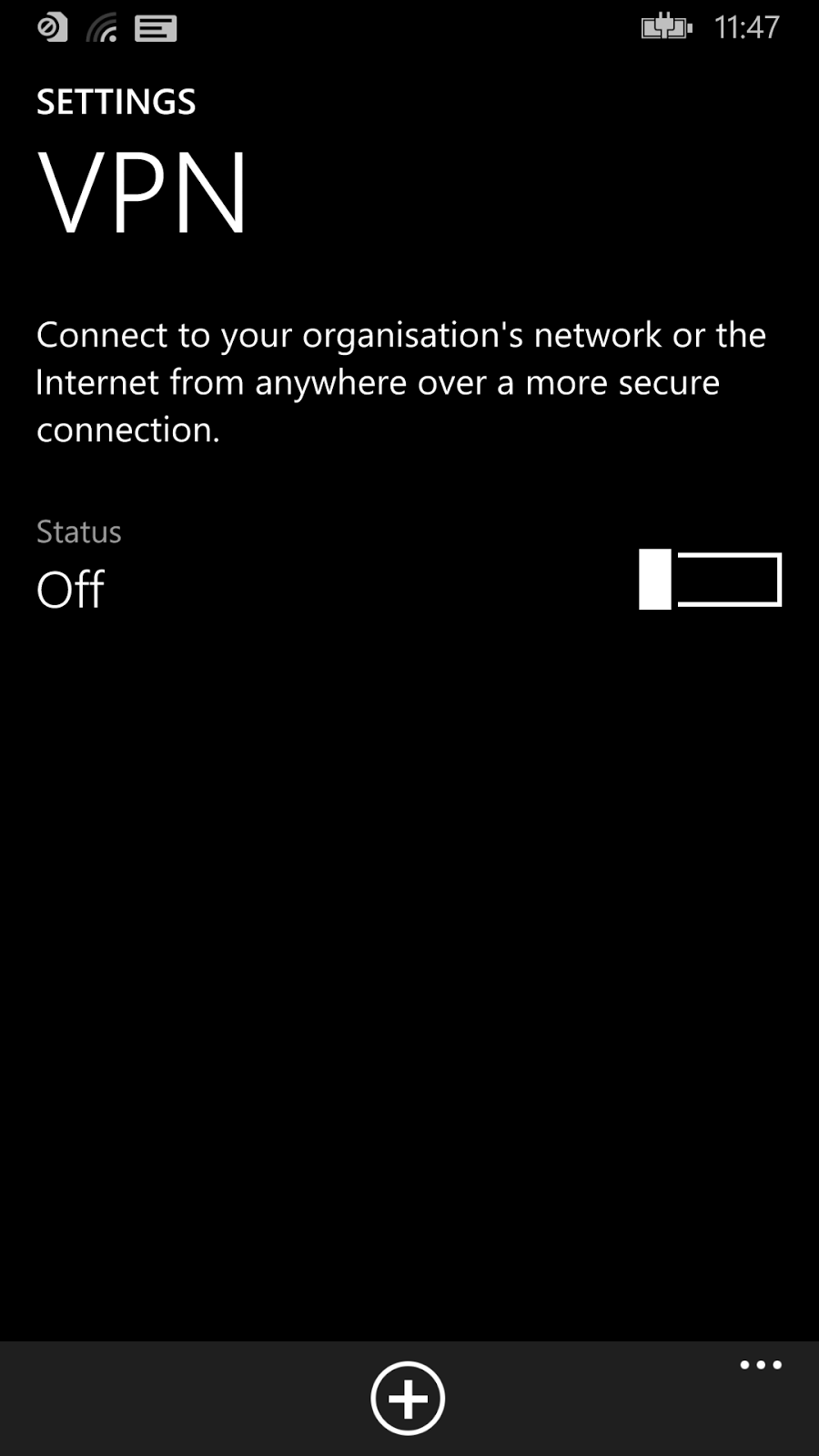
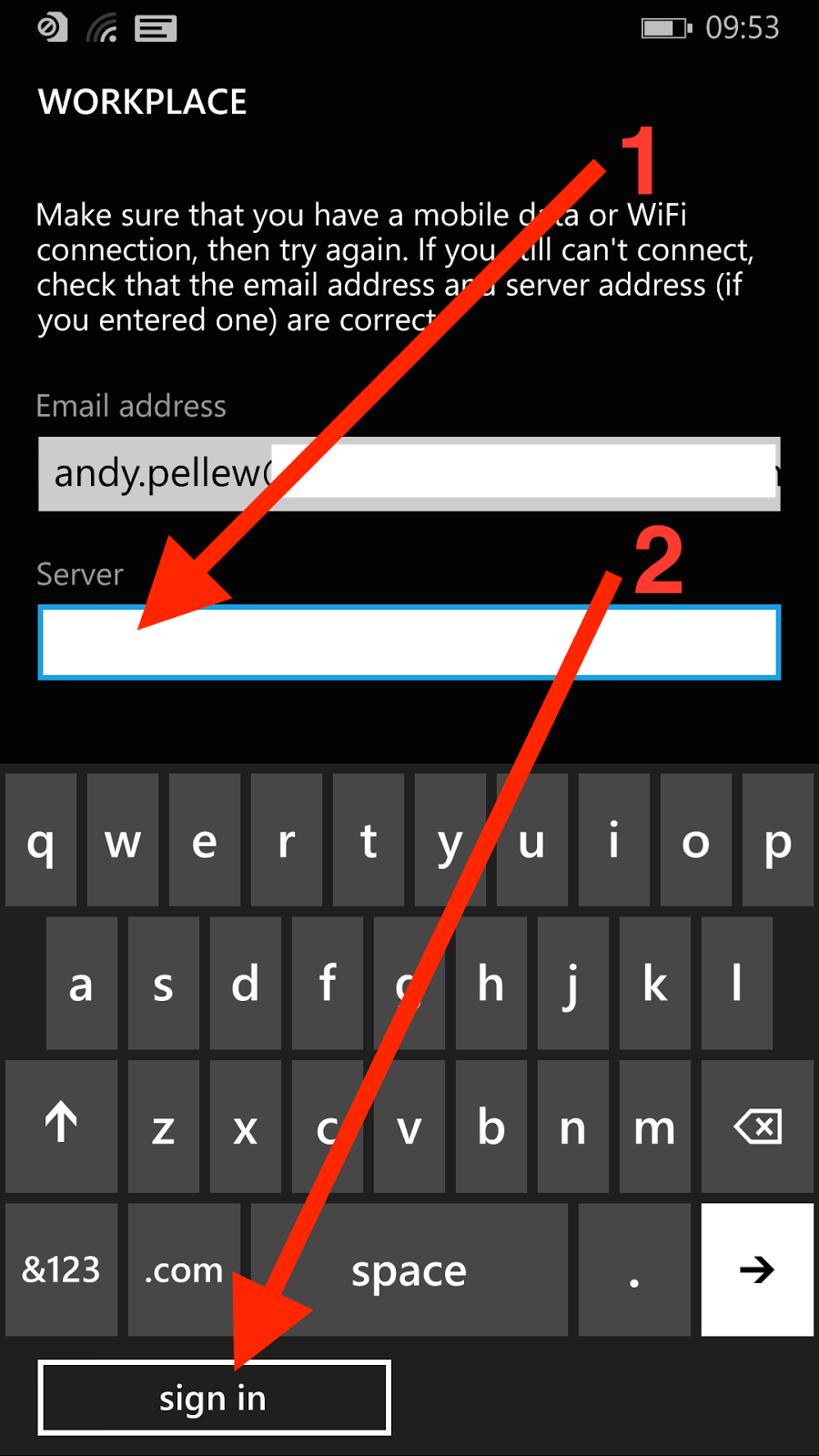
Doing the post a few days ago in relation to configuring MobileIron on a Windows Phone 8.1 highlighted some inconsistencies in the user interface I thought it was worth highlighting with their own post - some I think are down to MobileIron but some are also Microsoft.

Here are a few select screenshots from that post;


The first three are from the OS (configuring a workplace account), the final one is from the Mobile@Work app from MobileIron. The issue I'd like to highlight is the positioning and appearance of the button.

Here you'll notice a few things;

  • The button moves around. Sometimes it's under the displayed fields (first and third screens), sometimes it's at the bottom under the keyboard (second screen)
  • It's consistently lowercase (add account, sign in) - when it's text
  • In the second screen it's incorrectly labelled (sign in) - which it can't possibly do without a password. Perhaps it should be "next"?
  • If it's text then it's consistently left-aligned
  • On the third screen it's a tick, rather than text, and it's centered rather than left-aligned
There also seems to be a font issue;
  • On screen two "workplace" (first and third screens) has turned into "WORKPLACE" - I'm guessing this is just a heading format issue (SETTINGS on the first screen seems to be the same header level)
  • On the third screen "workplace" is lowercase next to an icon. This icon doesn't seem to ever get used again and "Icon + Name" on the All Applications screen suggests it should be Workplace not workplace

Here are another couple looking within the Settings app at Email Accounts and VPN configurations;


Here are a few things I notice about this;
  • On the left (VPN) you can see a "+" button at the bottom of the app, whereas on the right the "+" button is near the top with a suffix "add an account"
  • Should it be "VPN" or "vpn"? This is the typical problem of picking "lowercase" as your desired standard - you force people to do the exact opposite for things like VPN (capitals), Microsoft (init cap), WiFi (mixed), etc. This is also why most user interface designers compromise on "Init Caps" (i.e. capitalise the First Letter Of Each Word) and just allow things like VPN etc. to be exceptions
  • "and" has been replaced by "+"
  • The "add an account" link on the second screen. The header reads "email+accounts", but you can only "add an account"
So what's the point of all this? It's inconsistent. So what? It's not like it affects the capabilities of the device is it?

Well that's all true. I certainly didn't have any problems configuring the device however what I believe it shows is the lack of a single unifying goal behind the design. It's easy (and a little obvious) to say Microsoft is missing a "Steve Jobs"-figure but that's not really the issue. It should (and demonstrably is) possible to apply a consistent vision across a piece of software - lots of companies have done it including Microsoft. Remember when the "Office Ribbon" appeared? It wasn't as if the Excel or Outlook teams could have gone a different way.

The advantage of consistency (and this is an odd thing to have to say) is that everything looks the same. It means it's either the "best" design or it's not - everyone moves on to the next design or everyone stays where they are. You can't get an Office Ribbon in Outlook and old-style menus in Excel. What you need to make this work is a fairly flexible standard - there's no point in everyone agreeing to do something that doesn't work in all situations. Found a new situation? Agree it with the team responsible for the guidelines and move on. Someone else found a better way of doing something? Update the design and mark every app using the old design as needing an update. A lot of work I know, but what's the goal? Get the product out the door or make the best product possible?

This level of planning isn't impossible but it does require a great deal of organisational power to get it in place, and not too much power so that people feel they "own" the shared design rather than feeling the design is being dictated from somewhere else.

It's difficult to do, and the good news is that until Microsoft does something their interface will work, but will still appear a little unloved and uncared for. It's not just about passion for a good design - you also need the power to shape the product.

Maybe Windows Phone 10 will address the consistency issue ...


Wednesday, January 21, 2015

WIN8: Configuring A Workplace (MobileIron) Account on Windows Phone 8.1 (inc. Screenshots)

Here are a brief set of instructions (with lots of screen shots!) showing you how to configure a workplace account on Windows Phone 8.1. It might be slightly different for your configuration - I needed to enter a server address, it might be able to identify yours from your email - but should be good for everyone.

It isn't significantly different from Windows Phone 8.0, but is slightly different.

Start from the home screen;


Touch on the middle of the screen and pull your finger up (to move the screen down) to the very bottom;


The "All Applications" (or next) button will appear at the very bottom right of the screen. Touch here;


Touch any of the letters (C is highlighted, but it could be any letter);


We are after the "Settings" application so touch "s";


Touch "Settings";


Touch on the screen and pull upwards to scroll down. Unfortunately the list items aren't in Alphabetical order so stop when you see "workplace" appear;


Touch "workplace";


Touch "add account";


Touch on the "Email Address" box;


Enter your company email address (1) and then touch "sign in" at the bottom of the screen;


If Windows Phone can identify your server automatically it will just move on, if it can't a Server entry box will appear - touch it;


Enter the name of the Server (you don't need http or https, just something like my.server.com) (1) and then press "sign in";


As you can see here it's correctly identified that it's connected to a MobileIron server. Your email address should be populated from before, touch in the "Password" entry box to bring up the keyboard;


Enter your work password (1), and then touch "sign in" (2);


"We're looking for your settings ..." will appear at the top of the screen, a few seconds will pass and (providing all the details are correct and you're allowed to register new devices) you will see;


Make sure "Install company app" (1) is checked and then touch "done".

Go back to the main screen, back into All Applications (as shown at the start) but this time press "M" rather than "S";


Touch "Mobile@Work";


Touch on the "Email address" box and enter your email address (1) and password (2) and then touch the tick at the bottom the screen (3);


The "Server" box will appear (if it can't find it automatically), touch on the Server box (1), enter your server details exactly as you entered them when configuring the workplace account, and then touch the tick at the bottom (2);


Another few seconds will pass while the client updates from the server and then you will see your company apps;


That's it, you're done.


Thursday, October 30, 2014

Windows Phone 8.1 "Consent Needed"

So I just started using a Nokia 930 and I've been presented with the following dialog when checking for updates to the pre-installed applications;


You'll notice an absence of exactly what "Consent needed" means.

When you touch "retry all" Lumia Storyteller now presents the following dialog;


So "Consent needed" in this case is to grant Lumia Storyteller access to location data. Of course tapping "Cancel" works and prevents the app from installing - it doesn't remove it from the list though so you'll be prompted for as long as you own the device to install it. You just need to "allow" once (which anyone can do, no password required) so better make sure you never give the device to anyone else. Once you've allowed the app there doesn't seem to be a way (other than uninstalling the application) to revoke the granted permission.

I'm sure all that will follow in Windows 10.

Tuesday, October 28, 2014

Windows Phone 8: Vodafone Still Blocking UK Updates

And this is Microsoft's biggest problem - despite everything they've said about wanting to get "as many devices as possible onto 8.1" they seem to have made the mobile networks gatekeepers for the process and Vodafone doesn't seem to be co-operating.

Here's the screen shot from my Windows 8 phone;


It's very disappointing - I suspect both for me and Microsoft.

Needless to say "last checked about 6 months ago" isn't accurate!

Let's hope whatever the issue is that's preventing Microsoft and Vodafone rolling out the update to my Nokia 925 it gets resolved soon, but as Nokia/Microsoft are no longer selling the 925 I don't think I'll be holding my breath!

Nokia 930 (UK) Pre-Installed Applications

I've been testing a Nokia 930 and I thought it might be useful to give you a list of all the applications that come pre-installed on the device.

This is particularly useful if you're thinking of deploying this device in an Enterprise environment as MobileIron (for example) won't let you remove these pre-installed applications.

Here's the list (followed by screenshots from the device);

  • Alarms
  • App Social (*)
  • Battery Saver
  • Calculator
  • Calendar
  • Camera
  • Cortana
  • Data Sense
  • Facebook (*)
  • FM Radio
  • Food & Drink (*)
  • Games
  • Health & Fitness (*)
  • HERE Drive+ (*)
  • HERE Maps (*)
  • Internet Explorer
  • LINE (*)
  • Lumia Beamer (*)
  • Lumia Creative Studio (*)
  • Lumia Help + Tips (*)
  • Maps
  • Messaging
  • MixRadio (*)
  • Money (*)
  • motion data (*)
  • Music
  • News (*)
  • Nokia Camera (*)
  • Nokia Storyteller (*)
  • Office
  • OneDrive
  • OneNote
  • People
  • Phone
  • Photos
  • Podcasts
  • Settings
  • Skype (*)
  • Sport (*)
  • Storage Sense
  • Store
  • Transfer My Data (*)
  • Travel (*)
  • Video
  • Vine (*)
  • Wallet
  • Weather (*)
The applications marked with (*) can be uninstalled and removed (manually).